Horcery logo
Menu icon

Organization Management

Joining An Organization Via Invite

Estimated time to complete: 5 -10 minutes

This guide walks you through accepting an email invitation to join a Horcery organization, creating your account, and accessing data within your organization.

Step 1: Before You Begin

Before you start, confirm that:

  • You have an active and stable internet connection
  • You have received an invite from your organization administrator

Step 2: Locate The Organization Invite Email

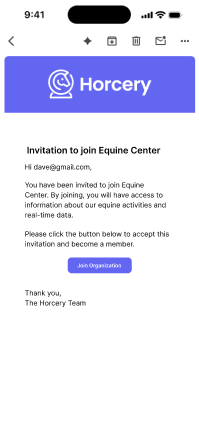
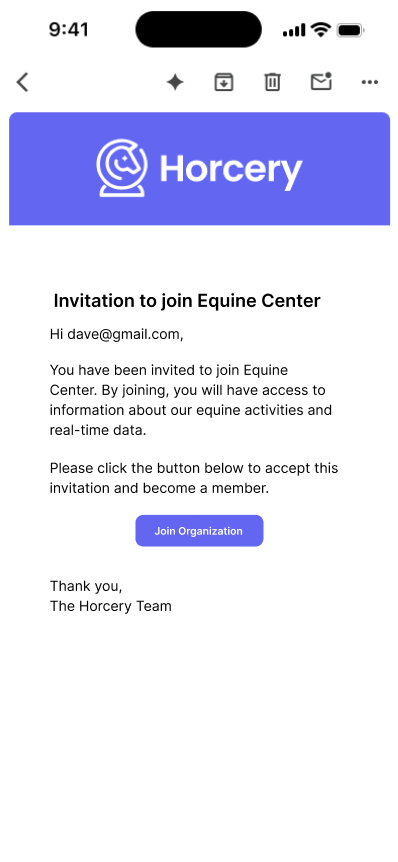
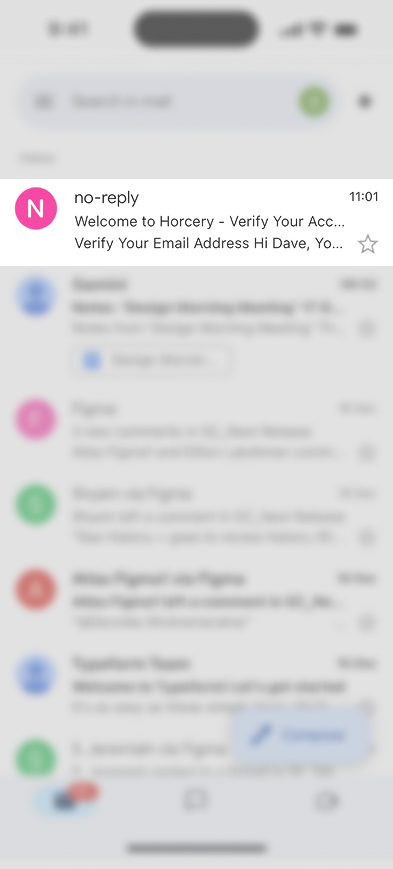
Once an administrator invites you to join an organization, you will receive an email in your inbox. Open the email and tap Join Organization.

Tip: If you don’t see the email in your inbox, check your junk or spam folder for the email.
Phone screen showing a Horcery organization invite email

Step 3: Create or Sign In to Your Account

You will be redirected to app.horcery.com. If you have an account, you can log in here or go through the sign up flow to create a new account.

If you do not have an account,

Make sure that you sign up using the same email address that received the invitation.

Welcome

Email

Password

Remember Me

Forgot Password?

Sign In

or

Don’t have an account yet? Sign up

Phone screen showing a Horcery login/sign up page

Step 4: Accept the Organization Invite

You can now tap Accept Invite on the screen to join the organization.

Phone screen showing 2 options to accept or decline an invite from an organization

Step 5: Download or Open the App

You will be redirected to the screen shown below where you will be prompted to open the mobile app. If you do not already have the app installed, you can download it from the App Store or Play Store.

Step 6: View Your Organization Dashboard

Once you’re in the app, you’ll be able to see all of the new organization data.

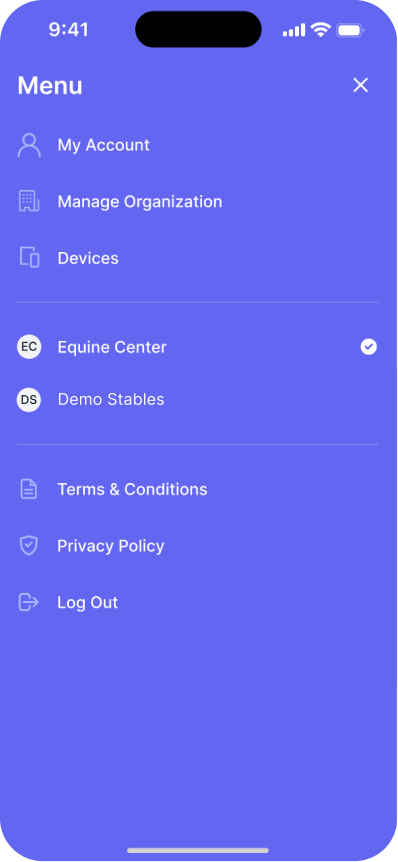
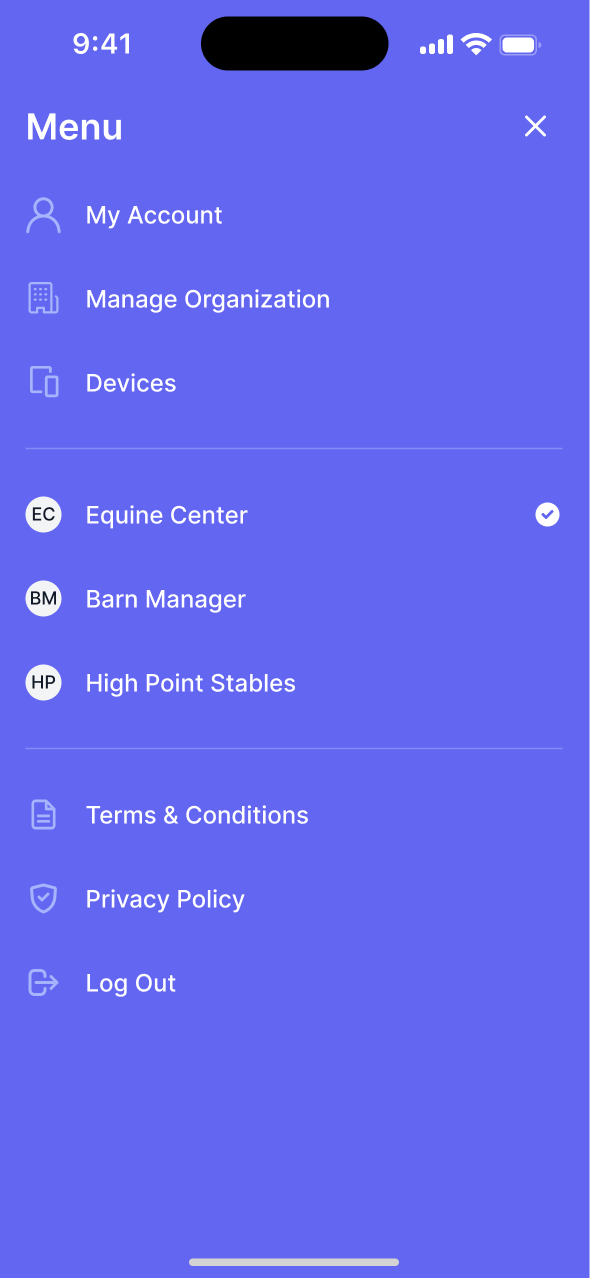
Tip: If you have multiple organizations, click on the menu icon in the top right corner of your app to switch between all the organizations that are linked to your email address.

Phone screen showing the Horcery mobile app For You page with 2 video snapshots of horses and a review card of a horse rolling
Phone screen showing the Horcery mobile app main menu with all available organizations with Equine Center selected

Need further assistance? Call our support hotline at (407) 890-7101 or email us at [email protected]

Horcery logo
Menu icon

Organization Management

Joining An Organization Via Invite

Estimated time to complete: 5 -10 minutes

This guide walks you through accepting an email invitation to join a Horcery organization, creating your account, and accessing data within your organization.

Step 1: Before You Begin

Before you start, confirm that:

  • You have an active and stable internet connection
  • You have received an invite from your organization administrator

Step 2: Locate The Organization Invite Email

Once an administrator invites you to join an organization, you will receive an email in your inbox. Open the email and tap Join Organization.

Tip: If you don’t see the email in your inbox, check your junk or spam folder for the email.

Phone screen showing a Horcery organization invite email

Step 3: Create or Sign In to Your Account

You will be redirected to app.horcery.com. If you have an account, you can log in here or go through the sign up flow to create a new account.

If you do not have an account,

Make sure that you sign up using the same email address that received the invitation.

Welcome

Email

Password

Remember Me

Forgot Password?

Sign In

or

Don’t have an account yet? Sign up

Phone screen showing a Horcery login/sign up page

Step 4: Accept the Organization Invite

You can now tap Accept Invite on the screen to join the organization.

Phone screen showing 2 options to accept or decline an invite from an organization

Step 5: Download or Open the App

You will be redirected to the screen shown below where you will be prompted to open the mobile app. If you do not already have the app installed, you can download it from the App Store or Play Store.

Step 6: View Your Organization Dashboard

Once you’re in the app, you’ll be able to see all of the new organization data.

Tip: If you have multiple organizations, click on the menu icon in the top right corner of your app to switch between all the organizations that are linked to your email address.

Phone screen showing the Horcery mobile app For You page with 2 video snapshots of horses and a review card of a horse rolling
Phone screen showing the Horcery mobile app main menu with all available organizations with Equine Center selected

Need further assistance? Call our support hotline at (407) 890-7101 or email us at [email protected]

Organization Management

Joining An Organization Via Invite

Estimated time to complete: 5 -10 minutes

This guide walks you through accepting an email invitation to join a Horcery organization, creating your account, and accessing data within your organization.

Step 1: Before You Begin

Before you start, confirm that:

  • You have an active and stable internet connection
  • You have received an invite from your organization administrator

Step 2: Locate The Organization Invite Email

Once an administrator invites you to join an organization, you will receive an email in your inbox. Open the email and tap Join Organization.

Tip: If you don’t see the email in your inbox, check your junk or spam folder for the email.

Phone screen showing a Horcery organization invite email in an email inbox
Phone screen showing a Horcery organization invite email

Step 3: Create or Sign In to Your Account

You will be redirected to app.horcery.com. If you have an account, you can log in here or go through the sign up flow to create a new account.

If you do not have an account,

Make sure that you sign up using the same email address that received the invitation.

Welcome

Email

Password

Remember Me

Forgot Password?

Sign In

or

Don’t have an account yet? Sign up

Phone screen showing a Horcery login/sign up page

Step 4: Accept the Organization Invite

You can now tap Accept Invite on the screen to join the organization.
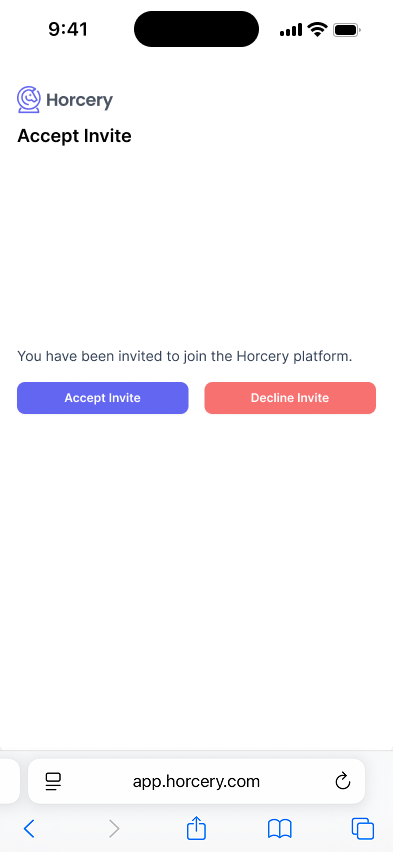
Phone screen showing 2 options to accept or decline an invite from an organization

Step 5: Download or Open the App

You will be redirected to the screen shown below where you will be prompted to open the mobile app. If you do not already have the app installed, you can download it from the App Store or Play Store.
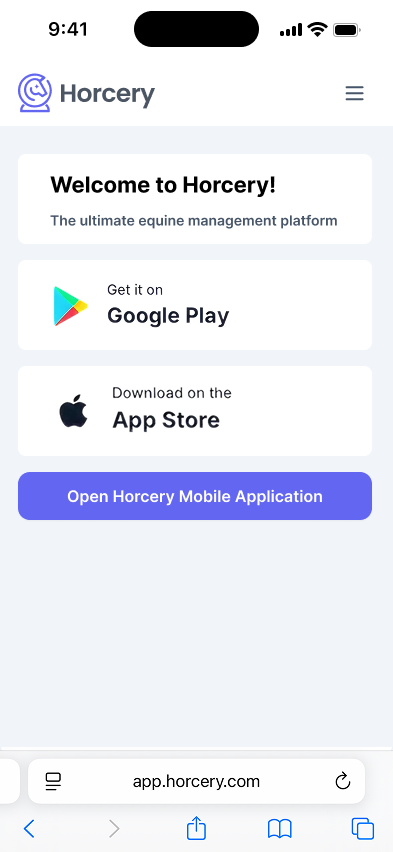
Phone screen showing buttons to download the Horcery mobile app from Google Play, the App Store or open the app if already downloaded

Step 6: View Your Organization Dashboard

Once you’re in the app, you’ll be able to see all of the new organization data.

Tip: If you have multiple organizations, click on the menu icon in the top right corner of your app to switch between all the organizations that are linked to your email address.
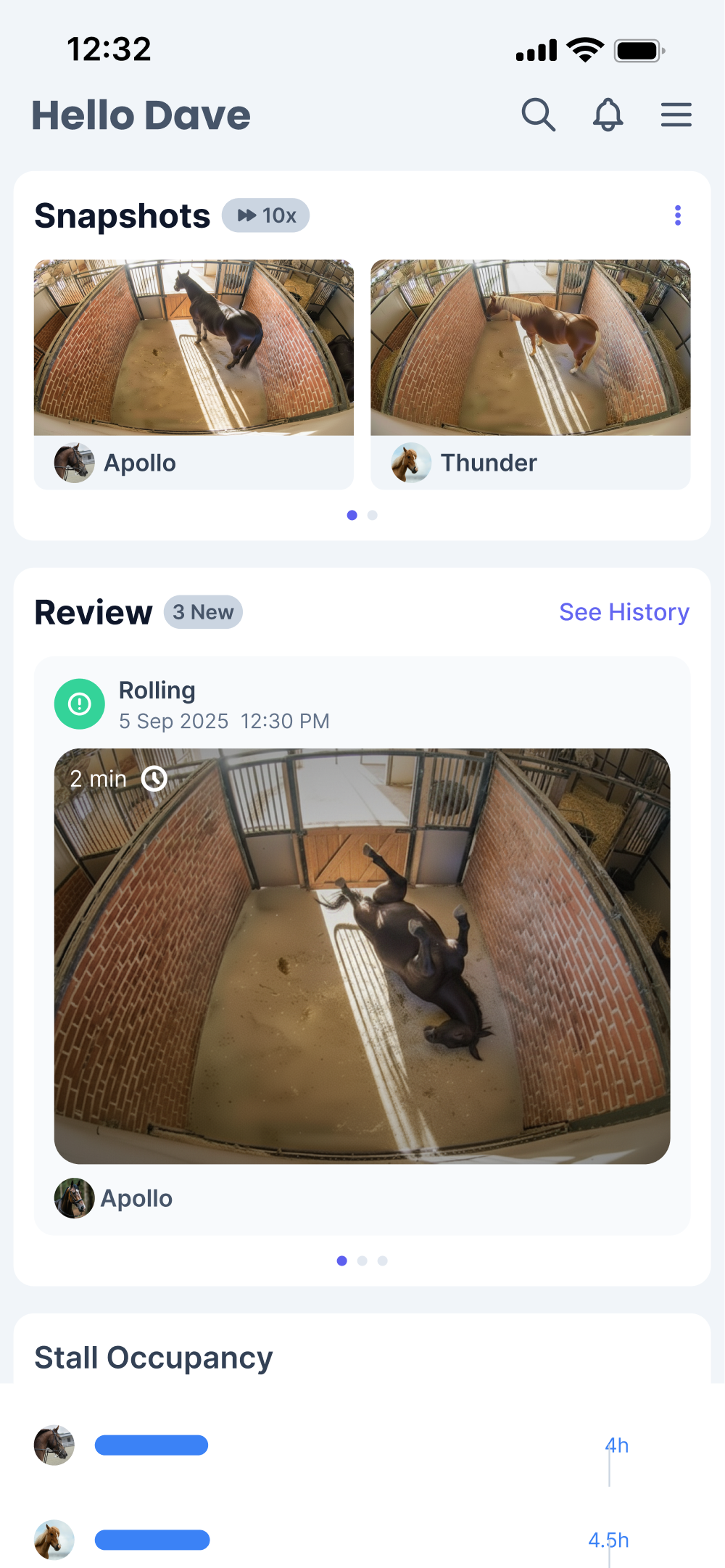
Phone screen showing the Horcery mobile app For You page with 2 video snapshots of horses and a review card of a horse rolling
Phone screen showing the Horcery mobile app main menu with all available organizations with Equine Center selected

Need further assistance? Call our support hotline at (407) 890-7101 or email us at [email protected]