Horcery logo
Menu icon

Organization Management

Inviting Users To An Organization

Step 1: Before You Begin

Before you start, confirm that you have:

  • A stable internet connection on your mobile device
  • The Horcery app downloaded on your mobile device and logged into the organization account
  • Admin access to your organization

Step 2: Open Your Horcery App

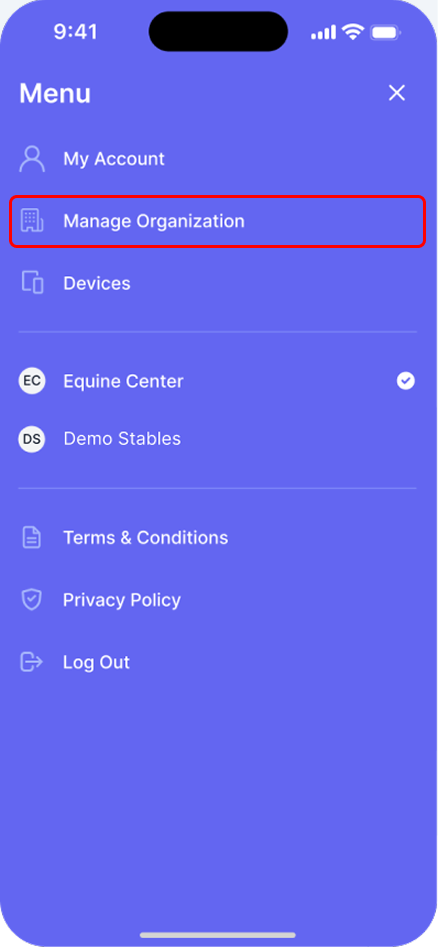
Open your Horcery app and log into your organization account (if you’re not already signed in). Tap the main menu button in the top right corner of your app and tap Manage Organization
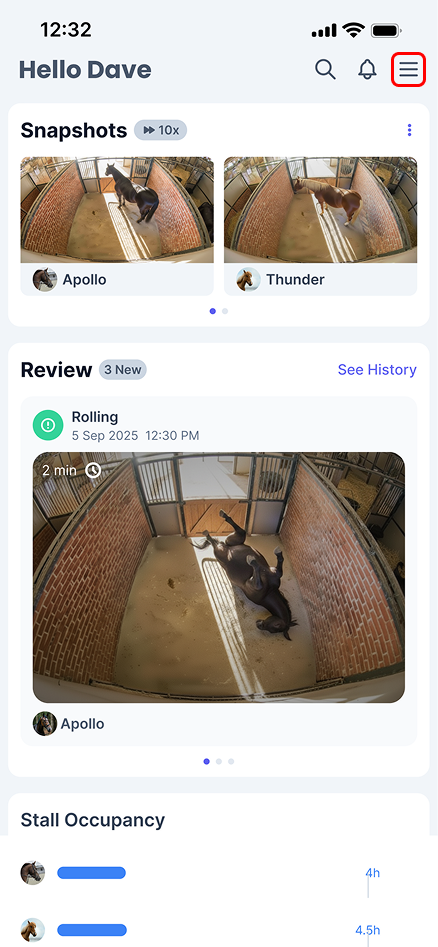

Phone screen showing the Horcery mobile app For You page with 2 video snapshots of horses and a review card of a horse rolling
Phone screen showing the Horcery mobile app main menu with all available organizations with Equine Center selected

Step 3: Send An Invite

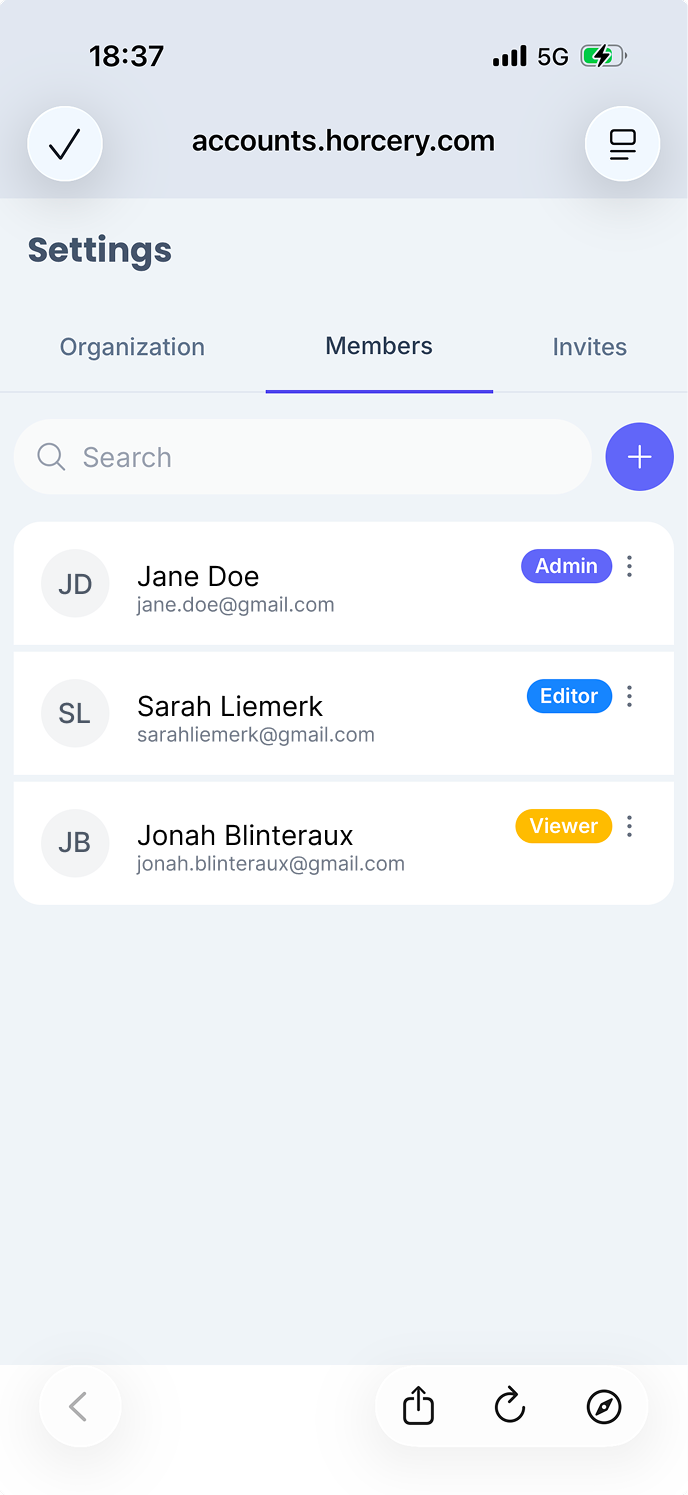
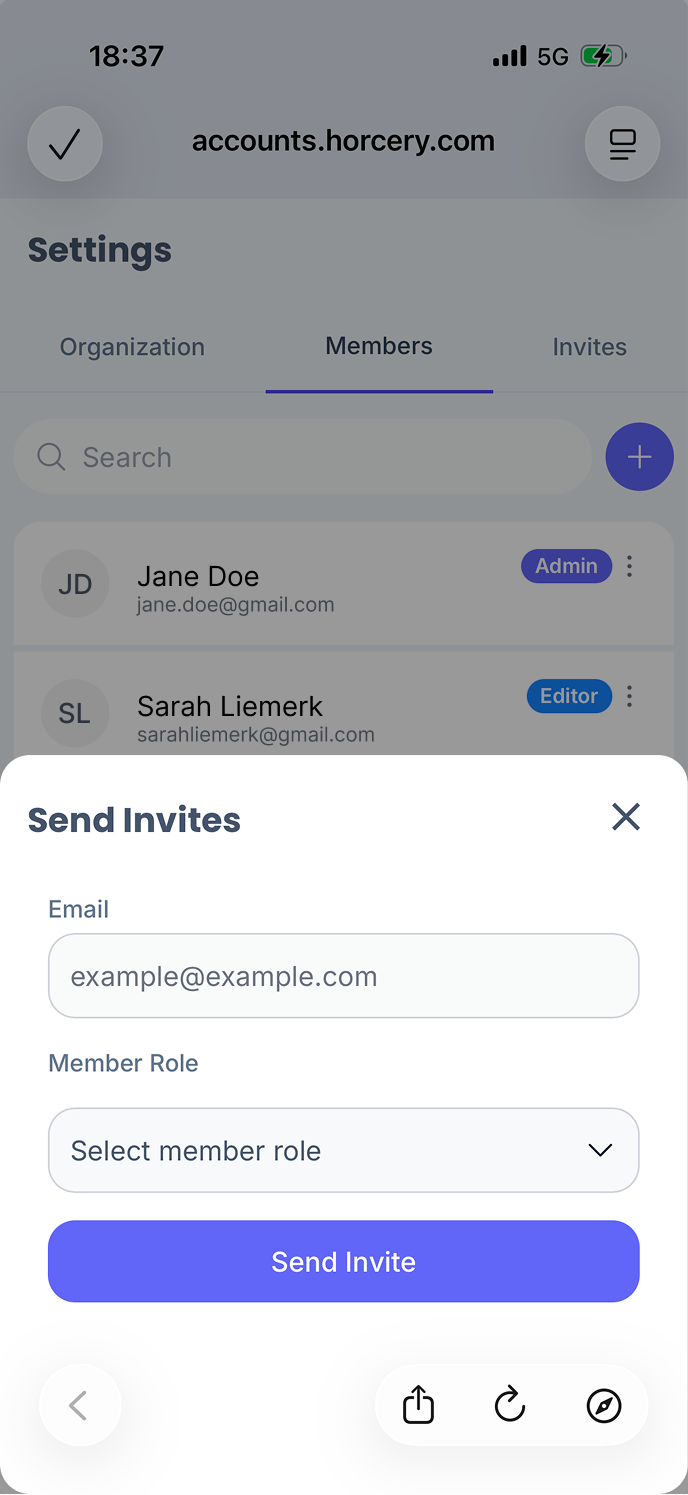
Click on the Members or Invites tab on the organization settings page. Click the + button and enter the new members details in the pop-up.

Phone screen showing the Horcery mobile app For You page with 2 video snapshots of horses and a review card of a horse rolling
Phone screen showing the Horcery mobile app main menu with all available organizations with Equine Center selected

You can select the member role for your new organization member from the following options:

  • Admin: Full management access across the organization. Can create, edit, delete, and manage all data, devices, users, etc
  • Editor: Can create and edit content within the organization, but cannot delete records, manage users, or change settings
  • Viewer: Read-only access. Can view data, analytics, and live streams, but cannot make any changes.

Step 4: Accept Email Invite

Your invitee will receive an email with a link to accept your invitation. Once accepted, they’ll be added to your organization in the Horcery app with the role you selected.

Need further assistance? Call our support hotline at (407) 890-7101 or email us at [email protected]

Horcery logo
Menu icon

Organization Management

Inviting Users To An Organization

Step 1: Before You Begin

Before you start, confirm that you have:

  • A stable internet connection on your mobile device
  • The Horcery app downloaded on your mobile device and logged into the organization account
  • Admin access to your organization

Step 2: Open Your Horcery App

Open your Horcery app and log into your organization account (if you’re not already signed in). Tap the main menu button in the top right corner of your app and tap Manage Organization

Phone screen showing the Horcery mobile app For You page with 2 video snapshots of horses and a review card of a horse rolling
Phone screen showing the Horcery mobile app main menu with all available organizations with Equine Center selected

Step 3: Send An Invite

Click on the Members or Invites tab on the organization settings page. Click the + button and enter the new members details in the pop-up.

Phone screen showing the Horcery mobile app For You page with 2 video snapshots of horses and a review card of a horse rolling
Phone screen showing the Horcery mobile app main menu with all available organizations with Equine Center selected

You can select the member role for your new organization member from the following options:

  • Admin: Full management access across the organization. Can create, edit, delete, and manage all data, devices, users, etc
  • Editor: Can create and edit content within the organization, but cannot delete records, manage users, or change settings
  • Viewer: Read-only access. Can view data, analytics, and live streams, but cannot make any changes.

Step 4: Accept Email Invite

Your invitee will receive an email with a link to accept your invitation. Once accepted, they’ll be added to your organization in the Horcery app with the role you selected.

Need further assistance? Call our support hotline at (407) 890-7101 or email us at [email protected]

Organization Management

Inviting Users To An Organization

Step 1: Before You Begin

Before you start, confirm that you have:

  • A stable internet connection on your mobile device
  • Admin access to your organization
  • The Horcery app downloaded on your mobile device and logged into the organization account

Step 2: Open Your Horcery App

Open your Horcery app and log into your organization account (if you’re not already signed in). Tap the main menu button in the top right corner of your app and tap Manage Organization
Phone screen showing the Horcery mobile app For You page with 2 video snapshots of horses and a review card of a horse rolling
Phone screen showing the Horcery mobile app main menu with all available organizations with Equine Center selected

Step 3: Send An Invite

Click on the Members or Invites tab on the organization settings page. Click the + button and enter the new members details in the pop-up.
Phone screen showing the Horcery mobile app For You page with 2 video snapshots of horses and a review card of a horse rolling
Phone screen showing the Horcery mobile app main menu with all available organizations with Equine Center selected

You can select the member role for your new organization member from the following options:

  • Admin: Full management access across the organization. Can create, edit, delete, and manage all data, devices, users, etc
  • Editor: Can create and edit content within the organization, but cannot delete records, manage users, or change settings
  • Viewer: Read-only access. Can view data, analytics, and live streams, but cannot make any changes.

Step 4: Accept Email Invite

Your invitee will receive an email with a link to accept your invitation. Once accepted, they’ll be added to your organization in the Horcery app with the role you selected.

Need further assistance? Call our support hotline at (407) 890-7101 or email us at [email protected]