Horcery logo
Menu icon

Horses & Stalls

Adding A Horse To Your Organization

Step 1: Before You Begin

Before you start, confirm that you have:

  • A stable internet connection on your mobile device
  • The Horcery mobile app downloaded on your device and logged into your organization’s Horcery account

Step 2: Go to Horses tab

Navigate to the Horses page through the navigation bar on the bottom of your app.

Method 1: No Horses Added Yet

Step 2a: Add a New Horse

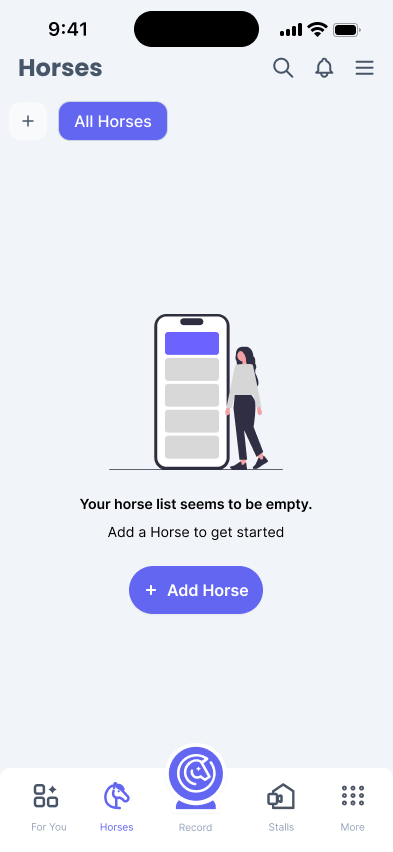
Tap the Add Horse button to add your first horse into your organization.
Method 2: Adding to An Existing Set of Horses

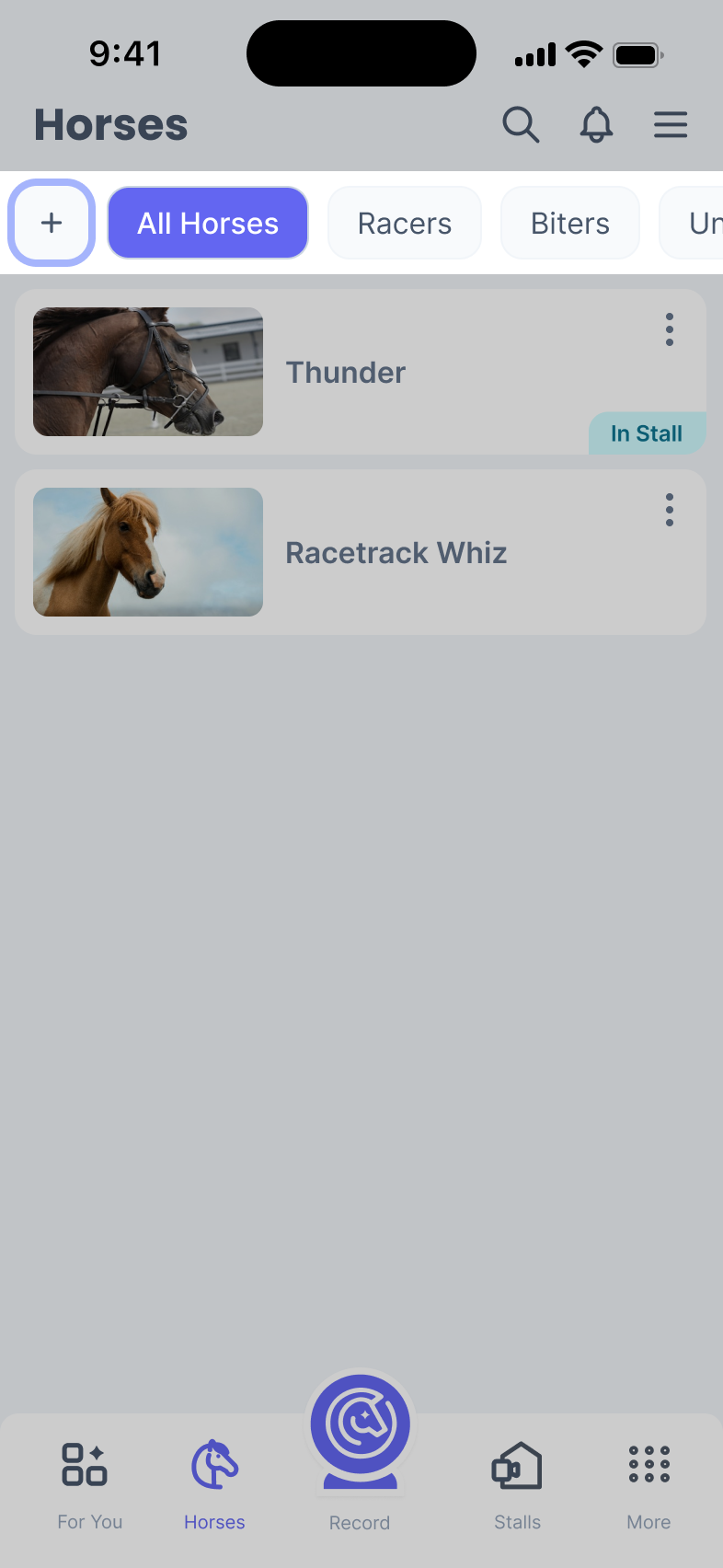
Step 2a: Hit + Button

Tap the + button next to your horse group tabs.
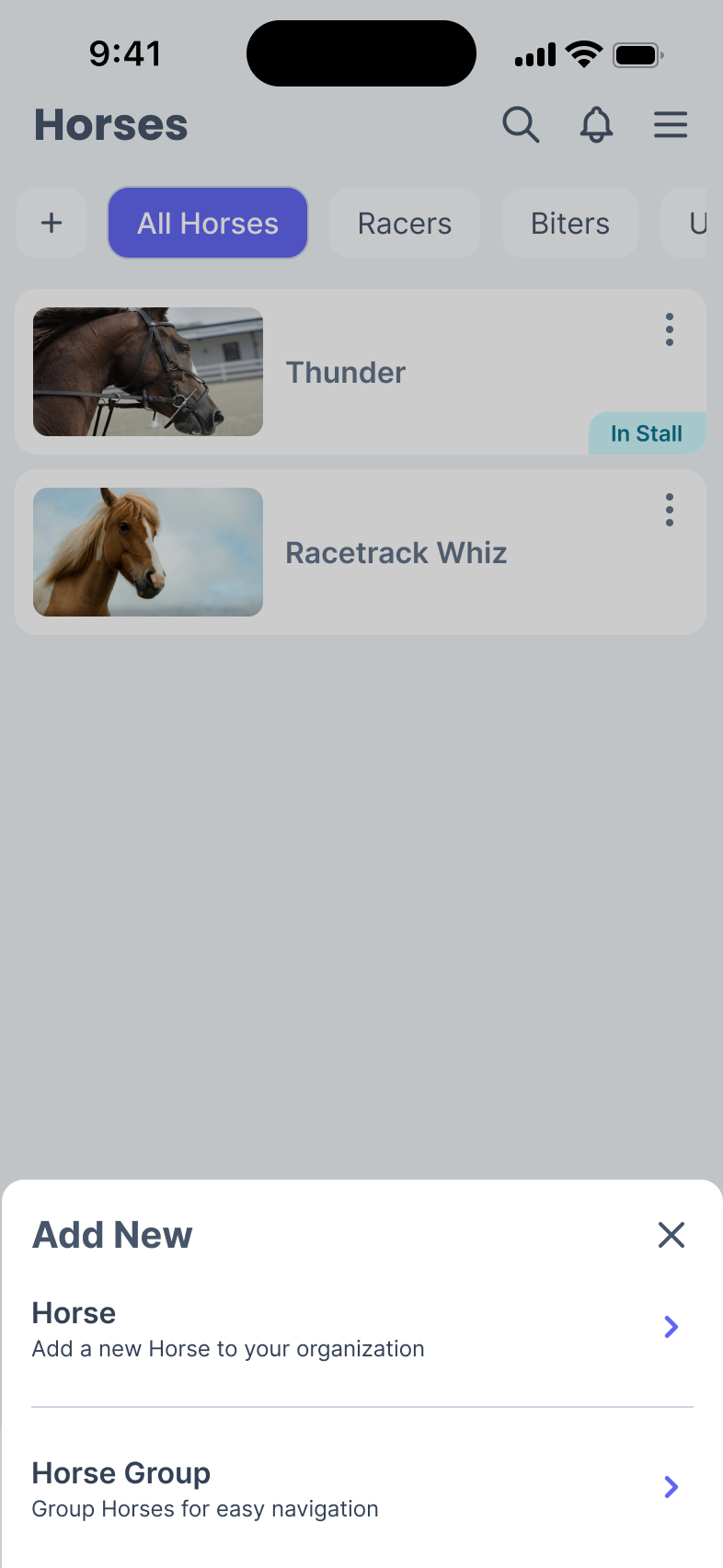
Step 2b: Select Add New Horse

A pop-up will appear on your screen, select Horse to add a new horse to your organization.
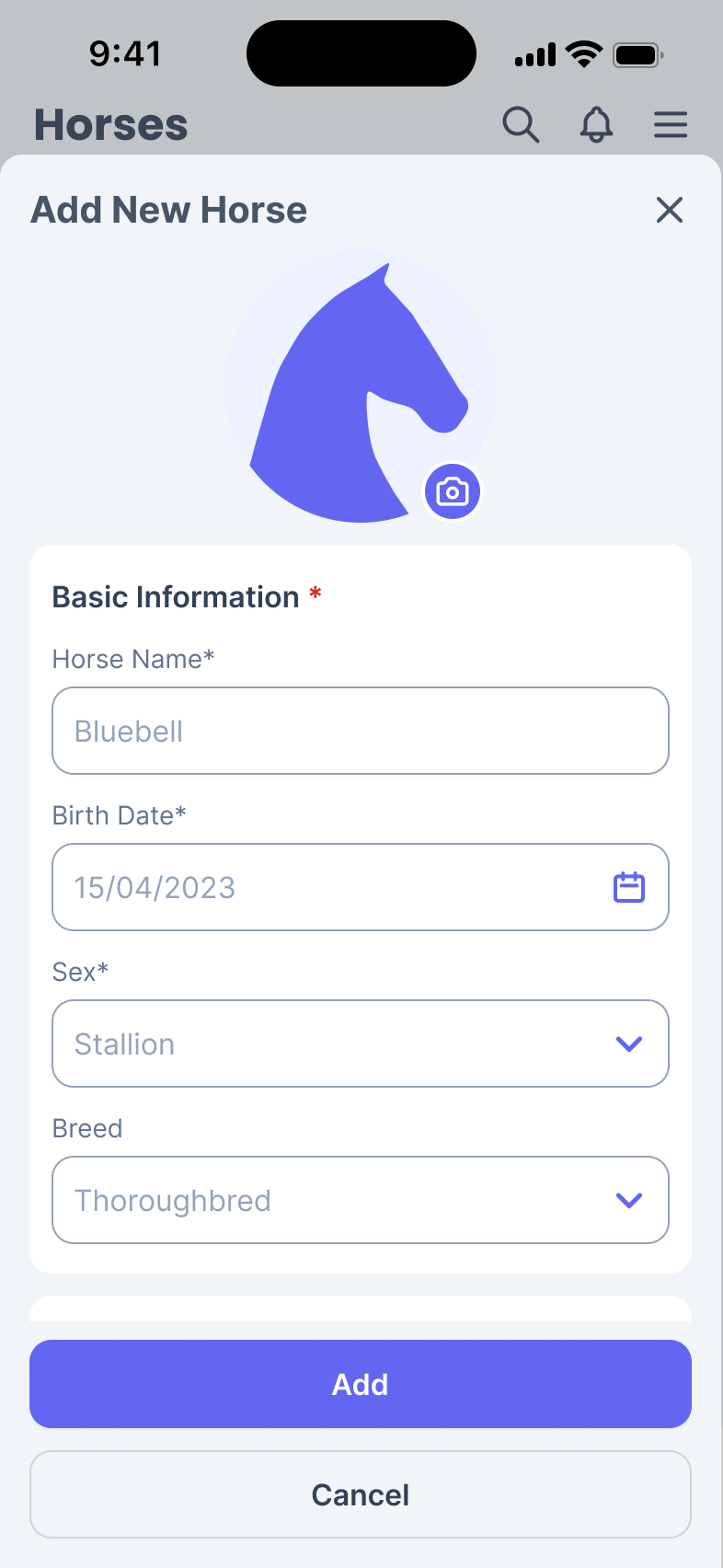
Step 3: Enter Horse Details

You will be prompted to fill up details about your horse. You need to fill all the mandatory fields in the basic information card to hit the add button.
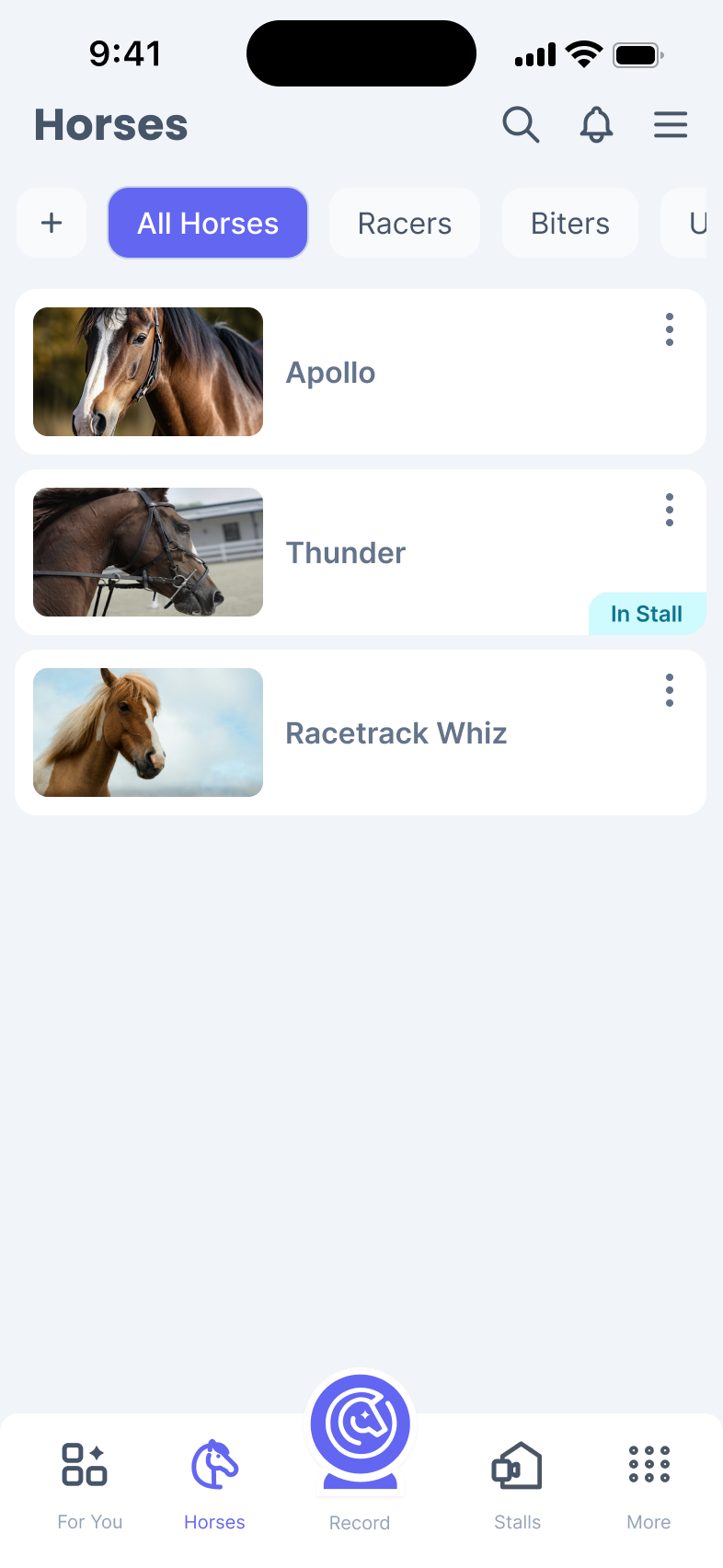
Step 4: Horse Successfully Added

Once you enter your horse details, you will see your new horse added to your Horses page.
Step 5: Link a Stall Monitor to Your New Horse

It is crucial to link a Stall Monitor to your horse in order to automatically collect key data metrics using Horcery’s advanced AI models.

Method 1: Via the Horse Page

Step 5a: Navigate to the Relevant Horse Page

Tap the horse on your Horses list to open up it’s detail page. You will then see a pop-up prompting you to assign a Stall Monitor to your horse.
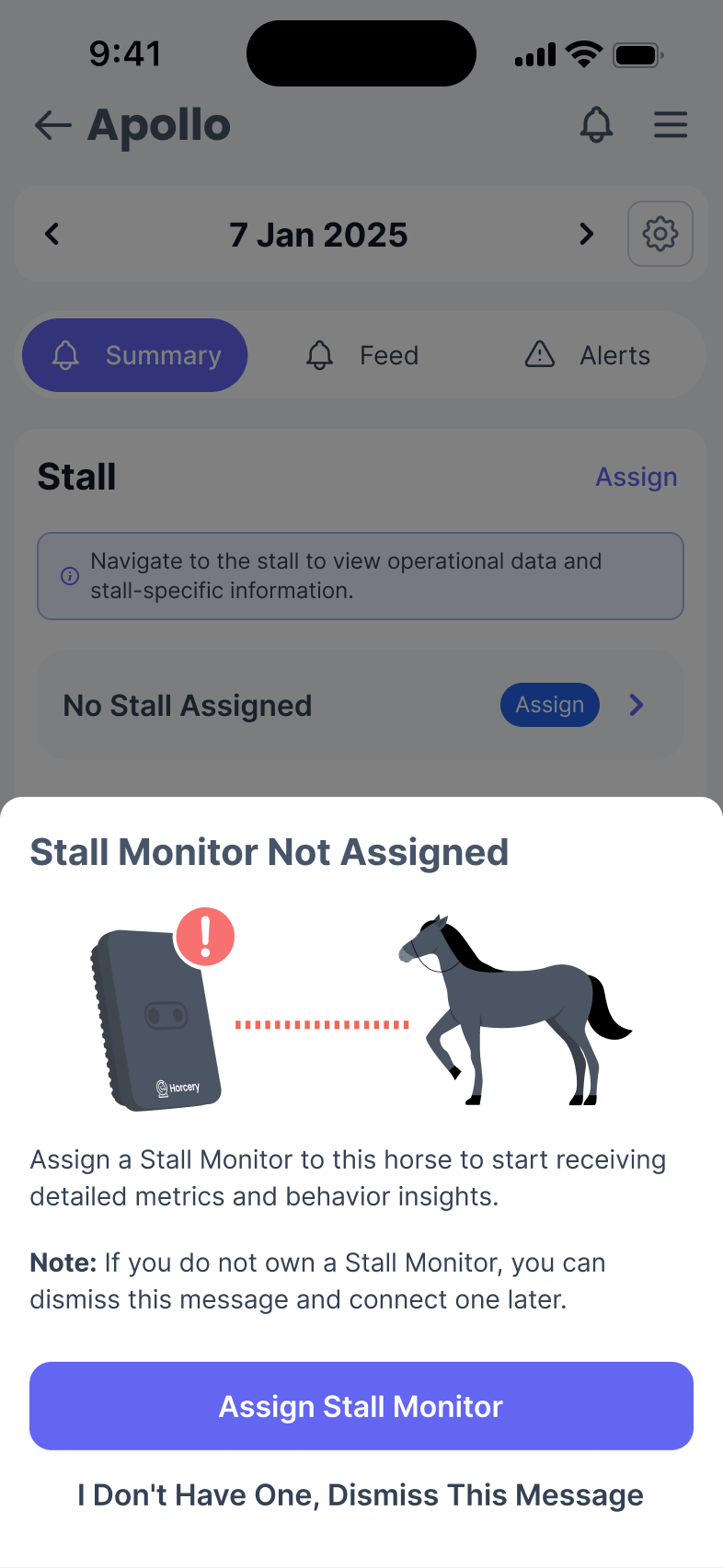
If you accidentally dismiss this message, you can always assign it using one of the two buttons that are highlighted in red boxes shown below.
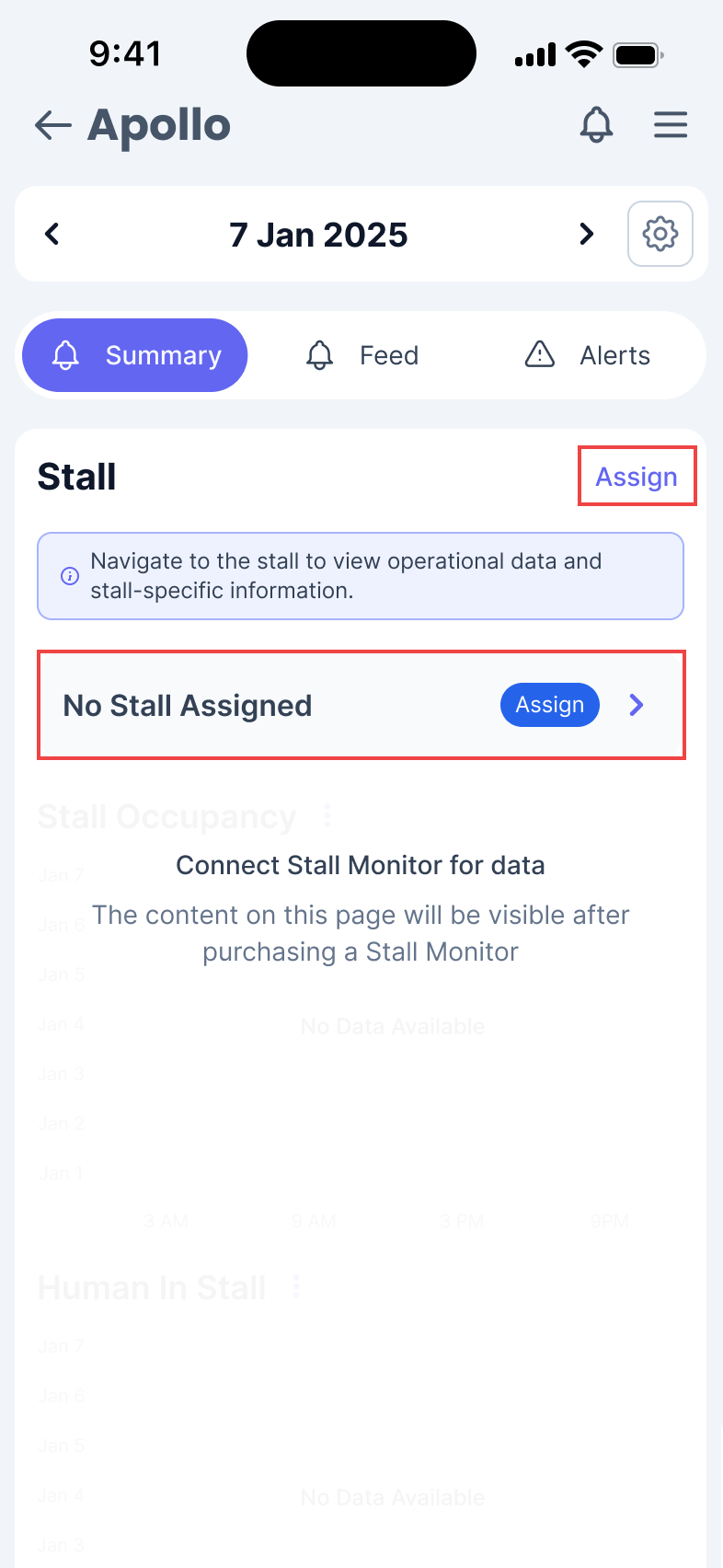
You will then be shown a list of Stall Monitors to choose from.

Ensure that you link your horse to the correct Stall Monitor to receive accurate data about it’s health & wellbeing.

Method 2: Via the Stall Page

Step 5a: Navigate to the Relevant Stall Page

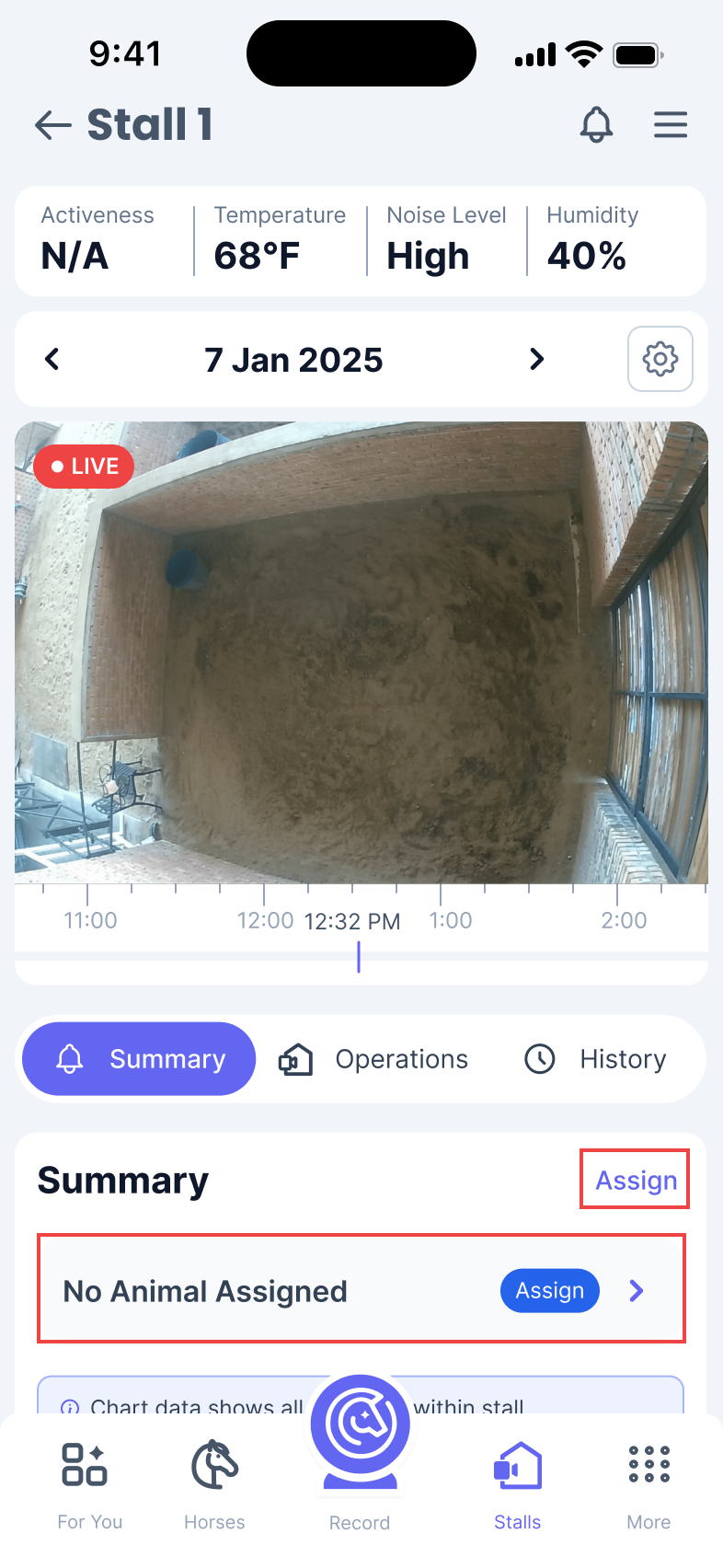
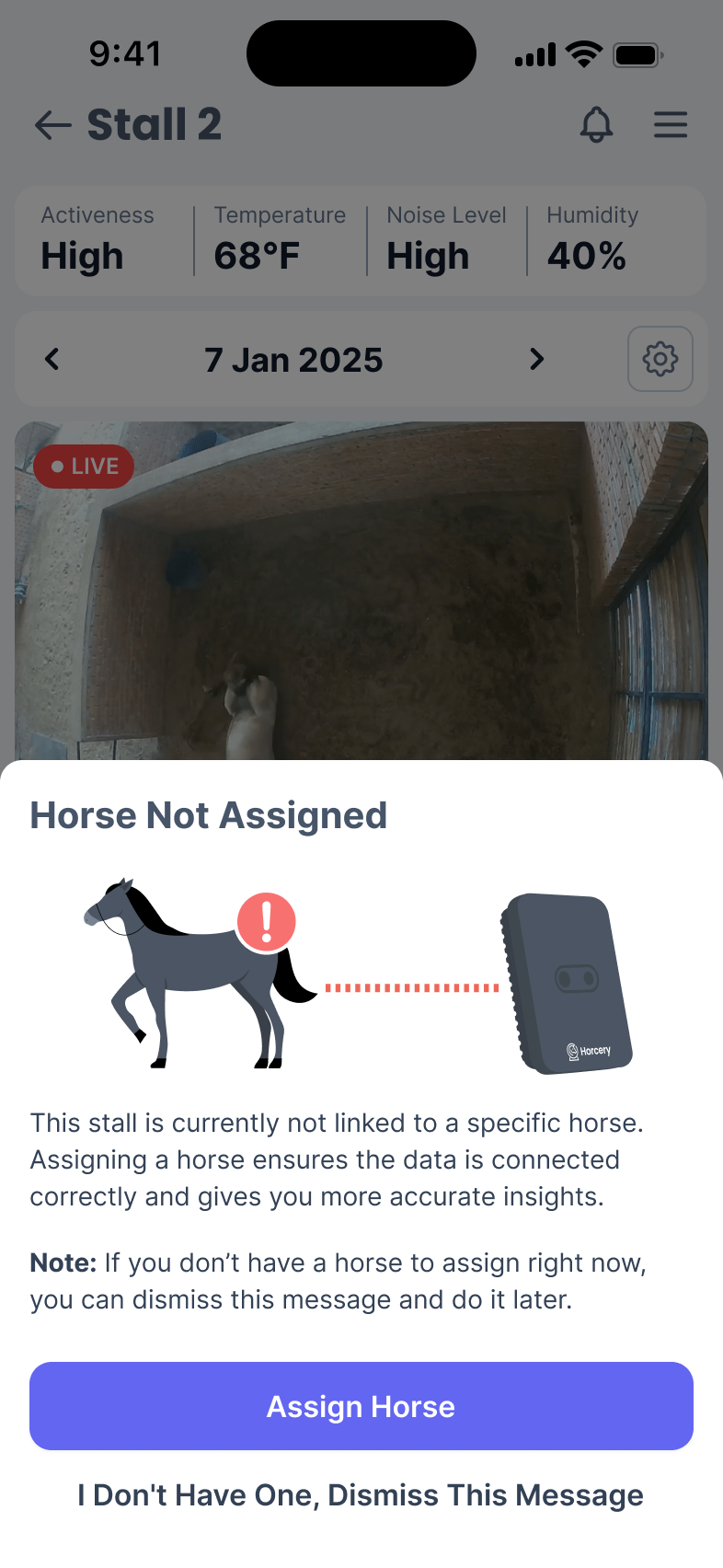
Tap the Stalls button on your bottom navbar and click on the relevant stall page that you want to link your horse to. If you have not assigned a horse to this Stall Monitor yet, you will see a pop-up prompting you to do so.
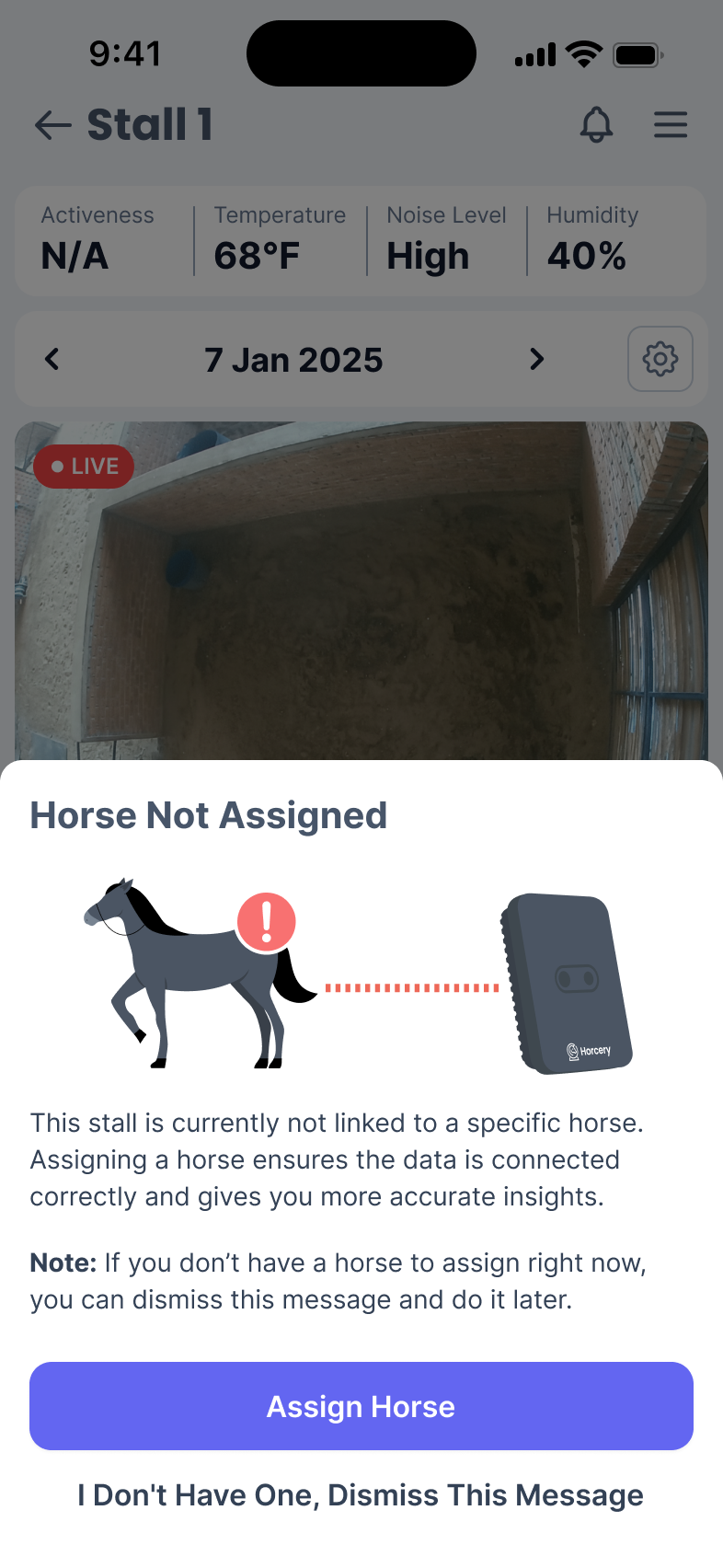
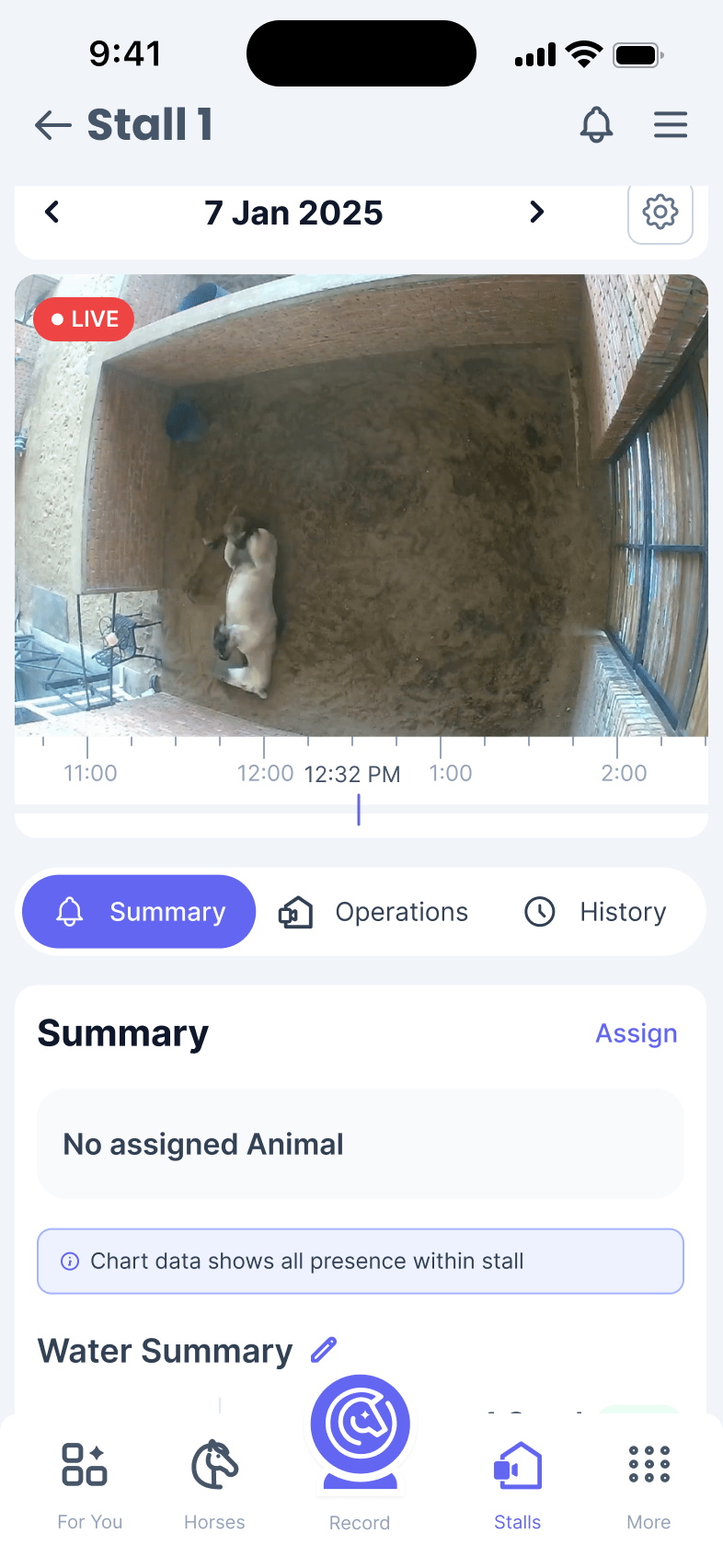
If you do not see this message, you can tap either of the options highlighted in red boxes below.
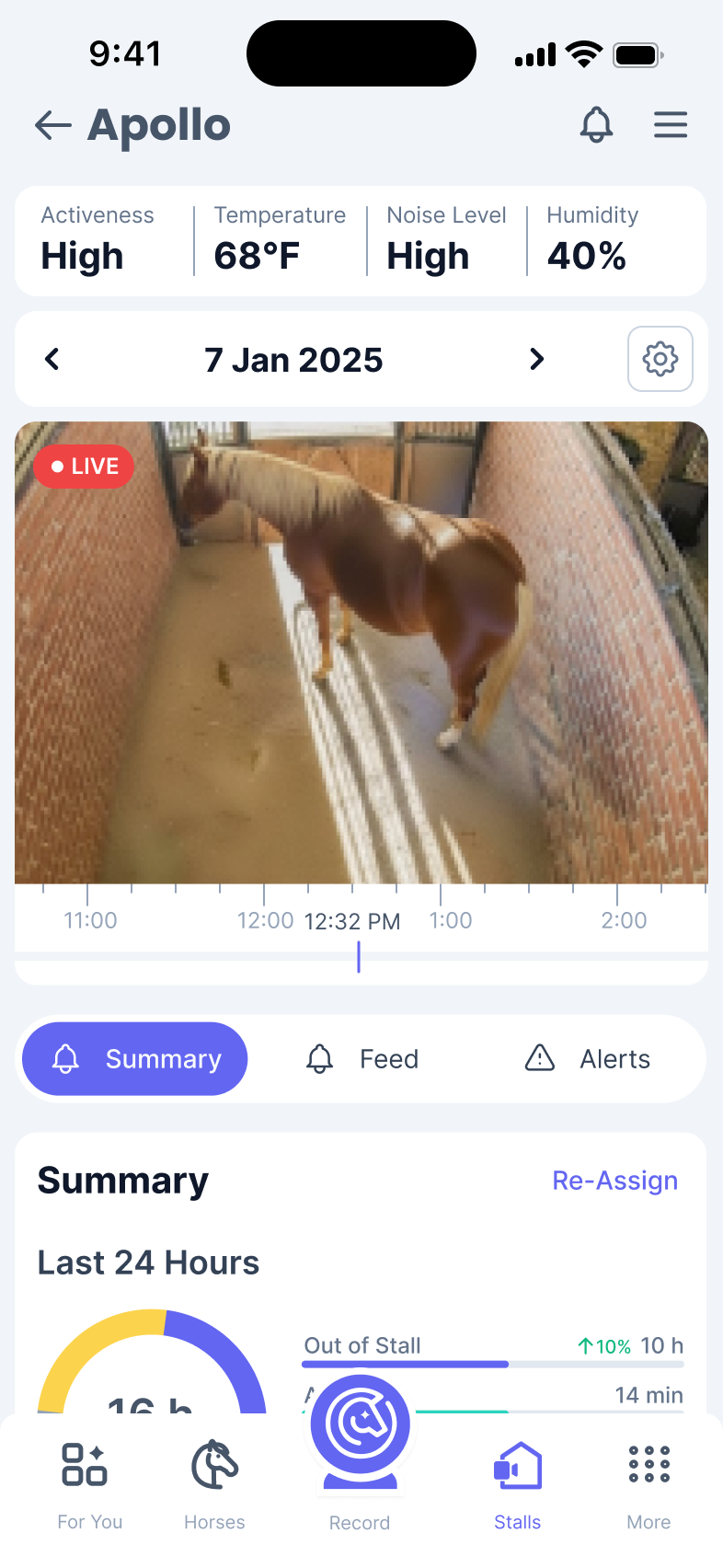
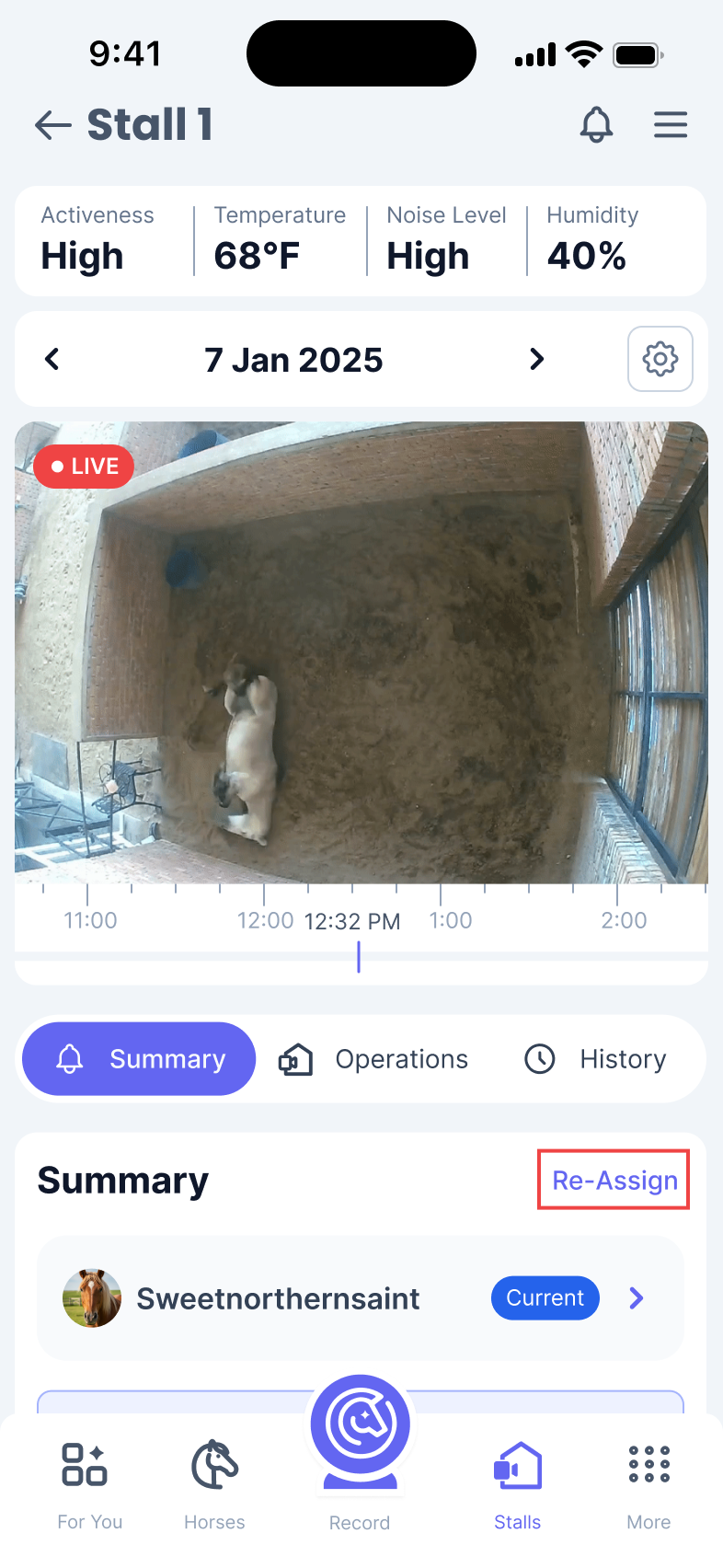
If you have already linked a horse with this Stall Monitor, you can switch the horse by clicking the Re-Assign button shown below (depending on your version of the Horcery mobile app, this button may be called Switch Horse instead).
Step 6: Updated Horse List

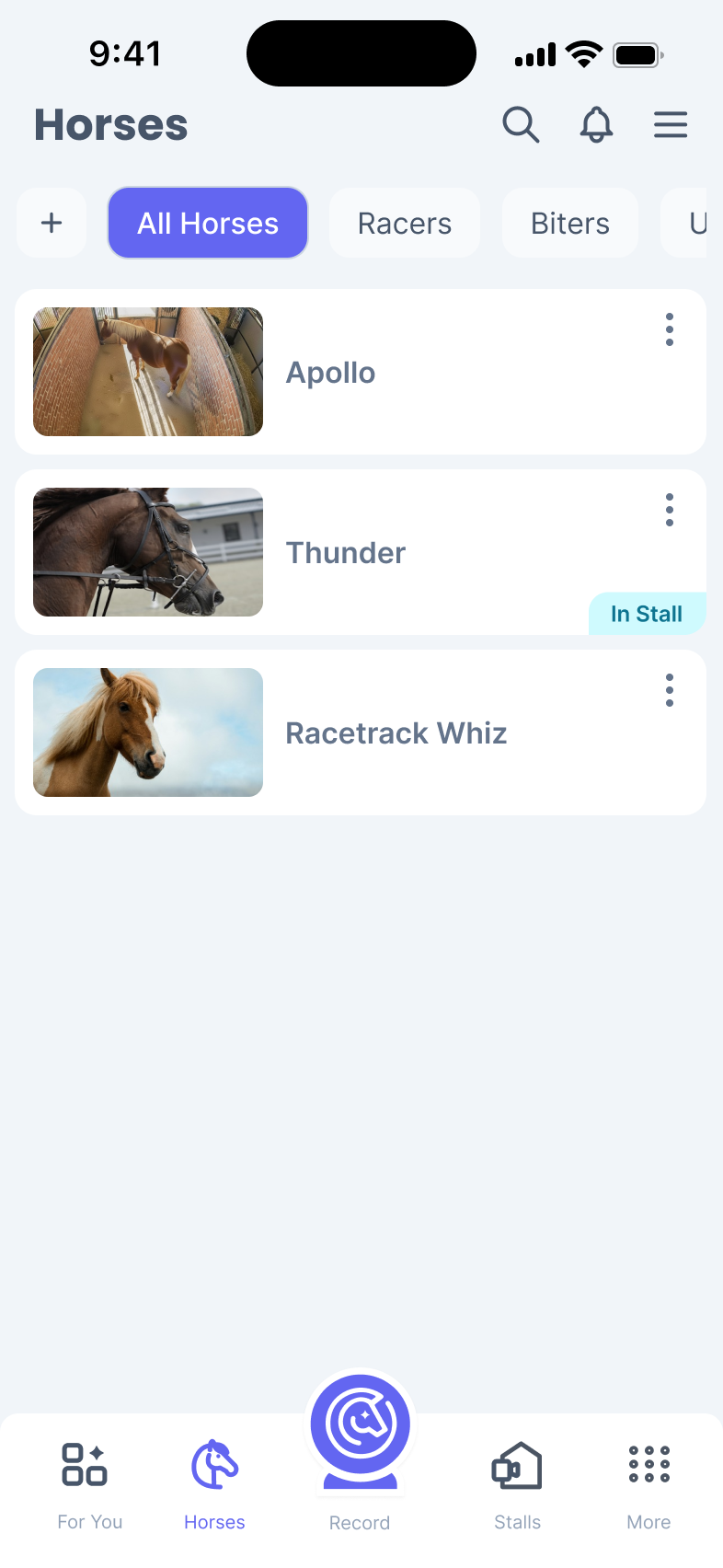
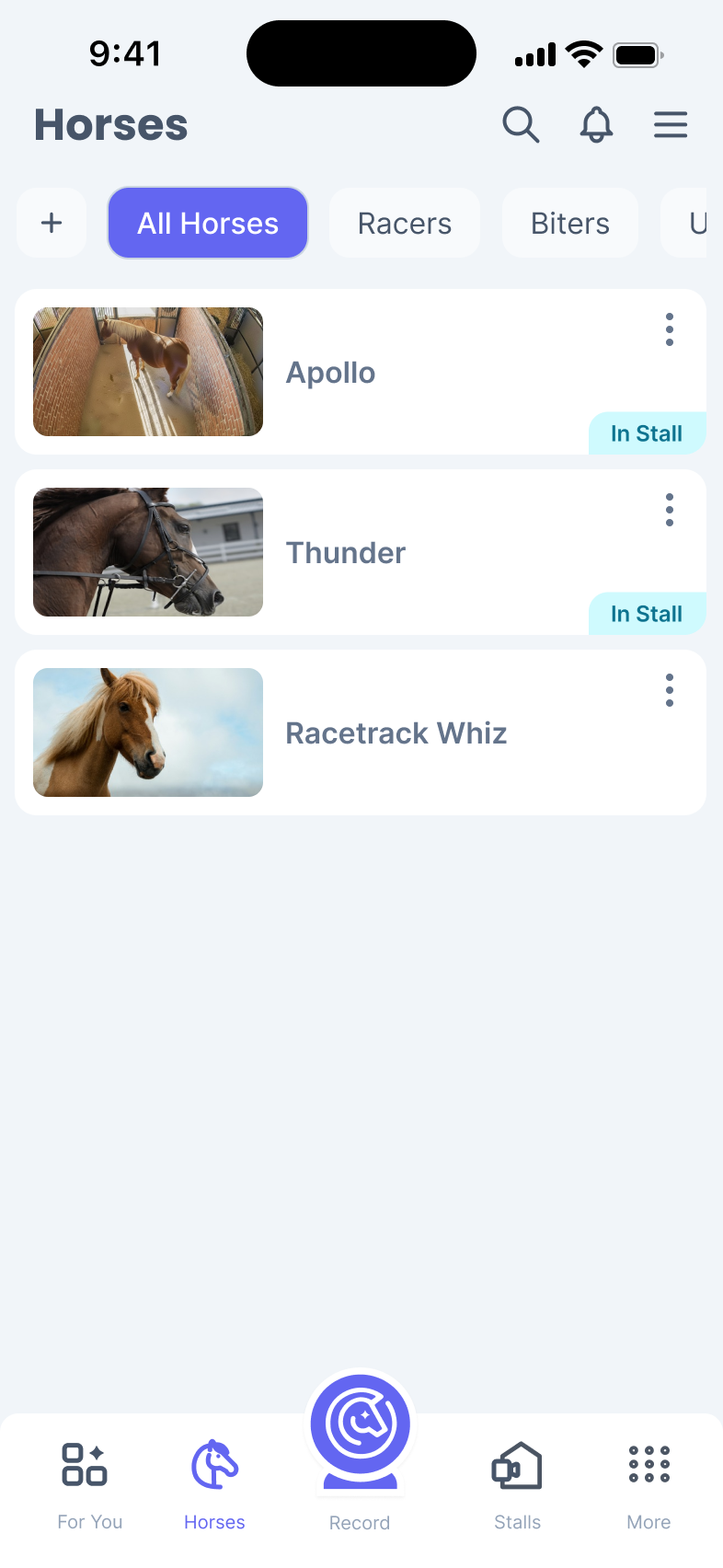
You will now be able to see an updated Horse list that includes a thumbnail of your Stall Monitor video feed, and a tag to indicate when your horse is in its stall. Click on the horse to view all relevant metrics captured by your Stall Monitor.
Need further assistance? Call our support hotline at (407) 890-7101 or email us at [email protected]

Horcery logo
Menu icon

Horses & Stalls

Adding A Horse To Your Organization

Step 1: Before You Begin

Before you start, confirm that you have:

  • A stable internet connection on your mobile device
  • The Horcery mobile app downloaded on your device and logged into your organization’s Horcery account

Step 2: Go to Horses tab

Navigate to the Horses page through the navigation bar on the bottom of your app.

Method 1: No Horses Added Yet

Step 2a: Add a New Horse

Tap the Add Horse button to add your first horse into your organization.

Method 2: Adding to An Existing Set of Horses

Step 2a: Hit + Button

Tap the + button next to your horse group tabs.

Step 2b: Select Add New Horse

A pop-up will appear on your screen, select Horse to add a new horse to your organization.

Step 3: Enter Horse Details

You will be prompted to fill up details about your horse. You need to fill all the mandatory fields in the basic information card to hit the add button.

Step 4: Horse Successfully Added

Once you enter your horse details, you will see your new horse added to your Horses page.

Step 5: Link a Stall Monitor to Your New Horse

It is crucial to link a Stall Monitor to your horse in order to automatically collect key data metrics using Horcery’s advanced AI models.

Method 1: Via the Horse Page

Step 5a: Navigate to the Relevant Horse Page

Tap the horse on your Horses list to open up it’s detail page. You will then see a pop-up prompting you to assign a Stall Monitor to your horse.

If you accidentally dismiss this message, you can always assign it using one of the two buttons that are highlighted in red boxes shown below.

You will then be shown a list of Stall Monitors to choose from.

Ensure that you link your horse to the correct Stall Monitor to receive accurate data about it’s health & wellbeing.

Method 2: Via the Stall Page

Step 5a: Navigate to the Relevant Stall Page

Tap the Stalls button on your bottom navbar and click on the relevant stall page that you want to link your horse to. If you have not assigned a horse to this Stall Monitor yet, you will see a pop-up prompting you to do so.

If you do not see this message, you can tap either of the options highlighted in red boxes below.

If you have already linked a horse with this Stall Monitor, you can switch the horse by clicking the Re-Assign button shown below (depending on your version of the Horcery mobile app, this button may be called Switch Horse instead).

Step 6: Updated Horse List

You will now be able to see an updated Horse list that includes a thumbnail of your Stall Monitor video feed, and a tag to indicate when your horse is in its stall. Click on the horse to view all relevant metrics captured by your Stall Monitor.
Need further assistance? Call our support hotline at (407) 890-7101 or email us at [email protected]

Horses & Stalls

Adding A Horse To Your Organization

Step 1: Before You Begin

Before you start, confirm that you have:

  • A stable internet connection on your mobile device
  • The Horcery mobile app downloaded on your device and logged into your organization’s Horcery account

Step 2: Go to Horses tab

Navigate to the Horses page through the navigation bar on the bottom of your app.

Method 1: No Horses Added Yet

Step 2a: Add a New Horse

Tap the Add Horse button to add your first horse into your organization.

Method 2: Adding to An Existing Set of Horses

Step 2a: Hit + Button

Tap the + button next to your horse group tabs.

Step 2b: Select Add New Horse

A pop-up will appear on your screen, select Horse to add a new horse to your organization.

Step 3: Enter Horse Details

You will be prompted to fill up details about your horse. You need to fill all the mandatory fields in the basic information card to hit the add button.

Step 4: Horse Successfully Added

Once you enter your horse details, you will see your new horse added to your Horses page.

Step 5: Link a Stall Monitor to Your New Horse

It is crucial to link a Stall Monitor to your horse in order to automatically collect key data metrics using Horcery’s advanced AI models.

Method 1: Via the Horse Page

Step 5a: Navigate to the Relevant Horse Page

Tap the horse on your Horses list to open up it’s detail page. You will then see a pop-up prompting you to assign a Stall Monitor to your horse.

If you accidentally dismiss this message, you can always assign it using one of the two buttons that are highlighted in red boxes shown below.

You will then be shown a list of Stall Monitors to choose from.

Ensure that you link your horse to the correct Stall Monitor to receive accurate data about it’s health & wellbeing.

Method 2: Via the Stall Page

Step 5a: Navigate to the Relevant Stall Page

Tap the Stalls button on your bottom navbar and click on the relevant stall page that you want to link your horse to. If you have not assigned a horse to this Stall Monitor yet, you will see a pop-up prompting you to do so.

If you do not see this message, you can tap either of the options highlighted in red boxes below.

If you have already linked a horse with this Stall Monitor, you can switch the horse by clicking the Re-Assign button shown below (depending on your version of the Horcery mobile app, this button may be called Switch Horse instead).

Step 6: Updated Horse List

You will now be able to see an updated Horse list that includes a thumbnail of your Stall Monitor video feed, and a tag to indicate when your horse is in its stall. Click on the horse to view all relevant metrics captured by your Stall Monitor.
Phone screen of the Horses page updated with video feed showing for Apollo and a tag added to the base of Apollo’s card stating that they are in their stall.

Need further assistance? Call our support hotline at (407) 890-7101 or email us at [email protected]